
Zoho
Connect Referral Rock with Zoho to add converted referrals as new members, or create promotional links to use in Zoho emails
This native connection is live and open to all customers while we finish rounding it out. Don't rely on it being final; behavior may change before general availability.
Overview
Connect Zoho with Referral Rock to:
- Route new referrals into Zoho — create a Contact/Lead and set the stage
- Use Customer Feed — when a Deal is Closed Won, matching referrals are Approved across all programs and the account's contacts can be preloaded as members
- Promote your program through Zoho emails by adding access links
Customer Feed
Our native Customer Feed capability directly tracks referrals who convert via Zoho, and preloads these customers as members.
How it works (trigger + objects)
- Customer Feed trigger: Deal reaches Closed Won (or a stage you define). Objects: Deal, Contact, Lead.
- Referral Routing: new referral → Zoho Lead/Contact + pipeline stage.
- Two-way.
Setup (auth)
Connect Zoho over OAuth, selecting the data-center/region.
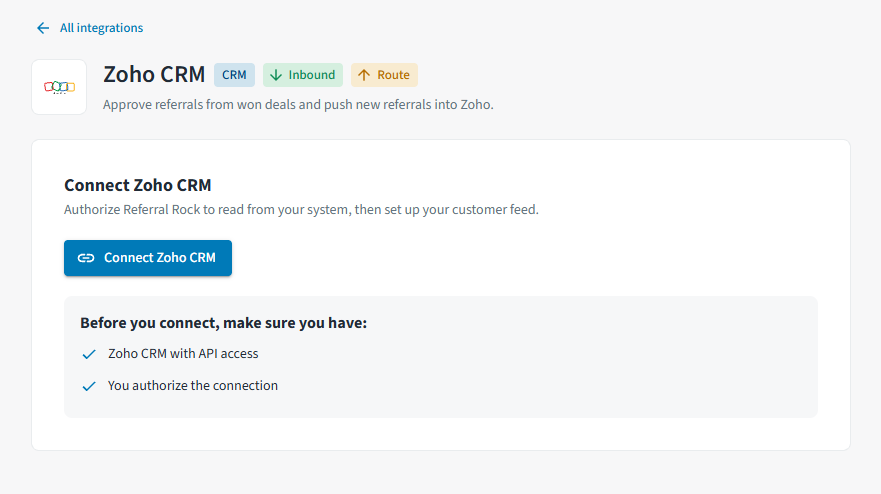
Find Zoho CRM on the Integrations page and select Connect, or click here.
Select Connect Zoho CRM.
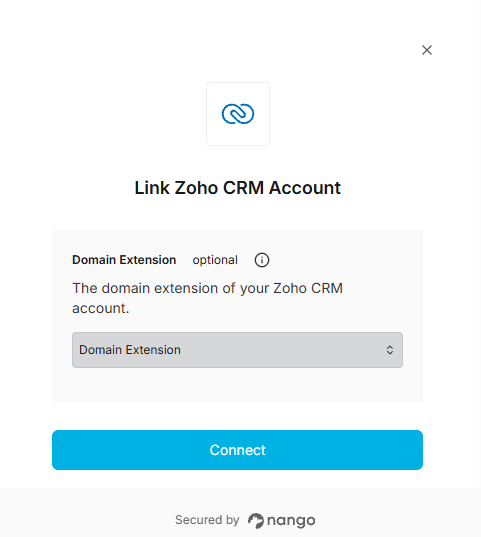
In the Link Zoho CRM Account pop-up, select the domain extension of your Zoho CRM account and click Connect.
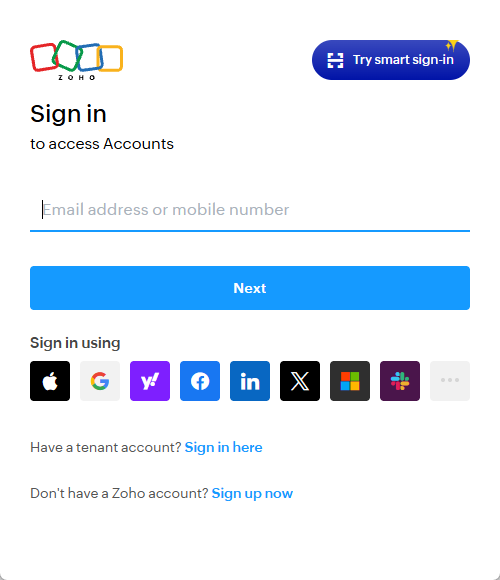
Log into Zoho via the pop-up to finish authorizing the connection over OAuth.
Promote Sharing from Email Campaigns
Common use cases for sharing with email campaigns:
- Launch your referral program with a mass email campaign
- Add links directly to footers of all emails for awareness of your program
- Build ongoing invite campaigns for new customers
Our access links make it easy for any email recipient to share with their friends. With one click, the recipient instantly gets into their Member Portal to start sharing. No passwords or registration required!
Step 1: Build Your Link
Click the button below to create a link for use in Zoho emails.
Step 2: Add Link to Email Templates
Adding your program's access link to email templates is a great way to maintain awareness of your program. Not everyone joins right away, but knowing your referral program exists helps remind people to share.
Step 3: Add the Link to your Email Campaign
- Create an email campaign in Zoho
- Place the Access Link as the Call-to-Action for joining your referral program
- Send yourself a test email to verify the link works correctly
- Send your Email Campaign to launch your referral program
Legacy Referral Add/ Referral Update (via Zapier)
While we recommend using our Customer Feed capabilities, you can also connect Zoho with Zapier to add and update referrals.
To add your Referral Rock account to Zapier, you will need Public and Private API Keys. You can create them here.
Watch the video below to learn how to add new referrals to Zoho Leads with Zapier.
Watch the video below to learn how to update the referral status from Zoho Deal stage updates.
Watch the video below to learn how to update the referral status from Zoho Lead status updates.
Updated 1 day ago